Hello! Check out the step-by-step guide to register your hours on Avenue Engage.
Warnings:
- Marking Type: Use this article only if your Engage markings are of the "Check-In/Check-Out" type. See below how it should appear on your Engage when entering a new time record in the "Time Entries" section:
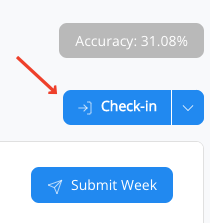
- Using Mobile: First, allow the system to access your smartphone's geolocation. This permission is only granted once. Thus, Engage will have access to your location and the exact time you are making the entry. > Check: The legality of using geolocation on Avenue Engage.
Remember: for this type of marking, you must record your point at the beginning and end of each work period of your day. Example:
- Entry when starting your workday;
- Lunch break exit;
- Entry after lunch;
- Exit at the end of your workday;
If you have taken a break during the day, simply record your entry and exit points normally.
Here's how it works:
- Click on "Check-In";
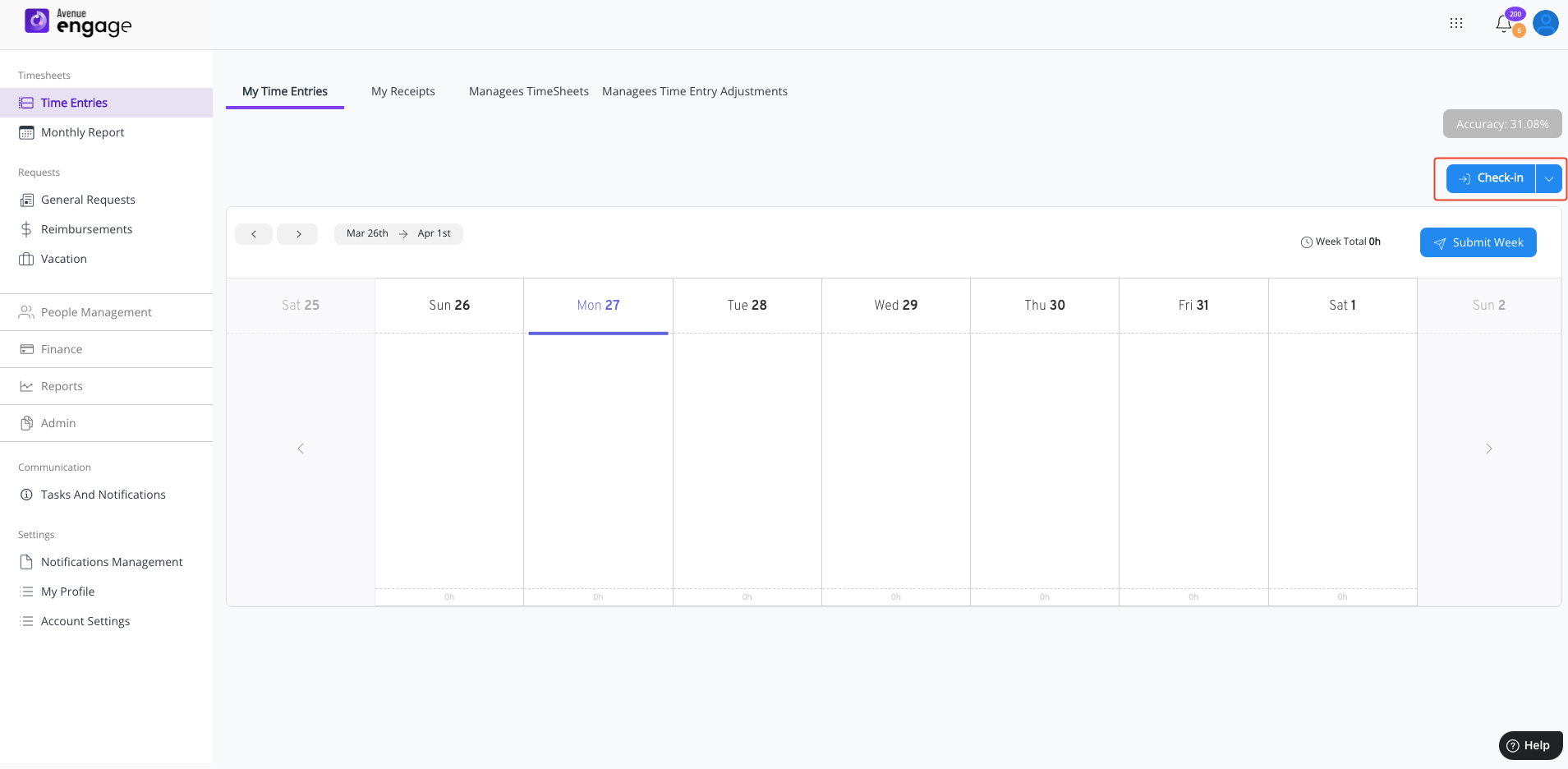
- Select the activity you are working on;
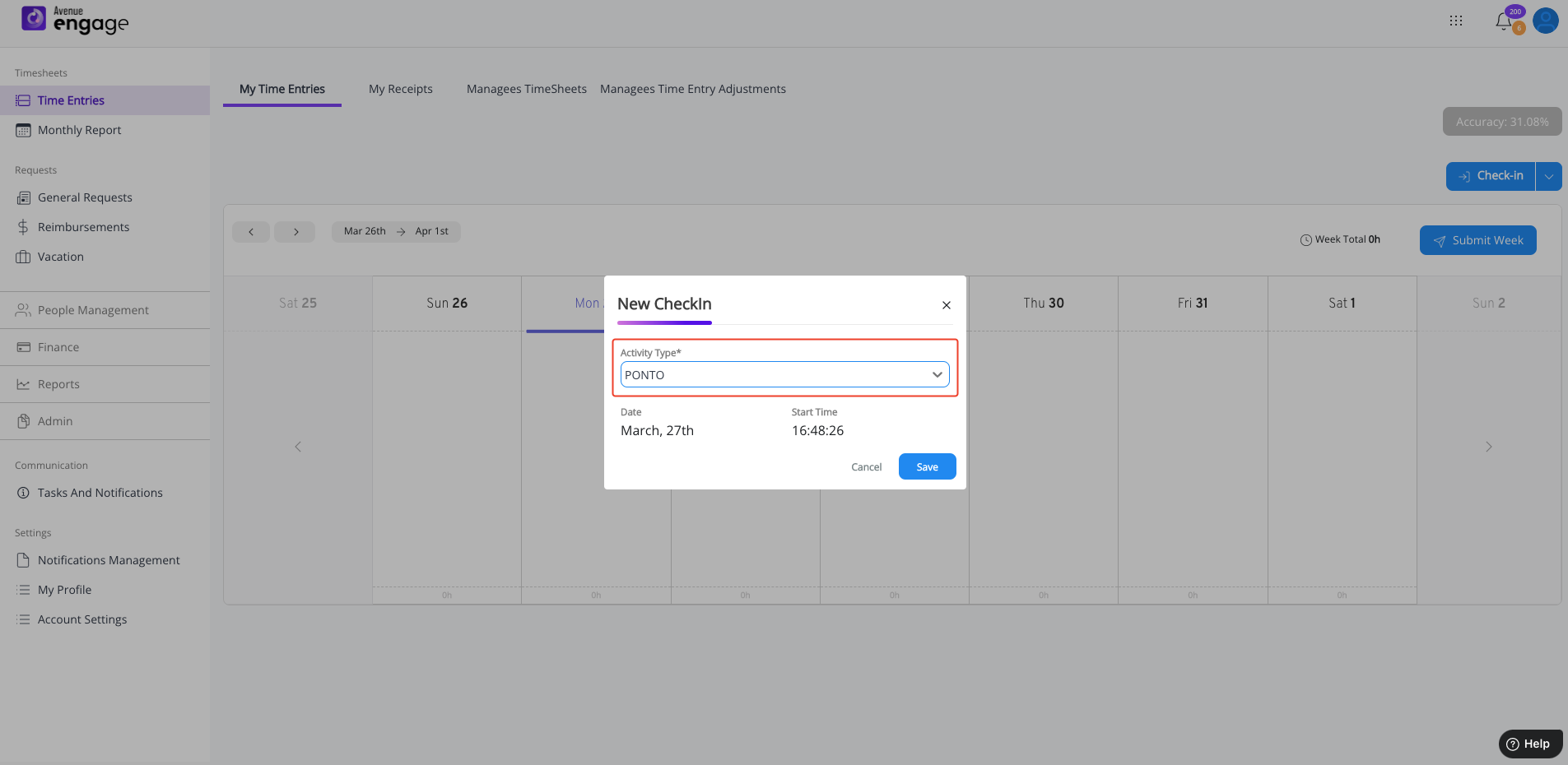
- Click Save;
- Check your Time Record Receipt.
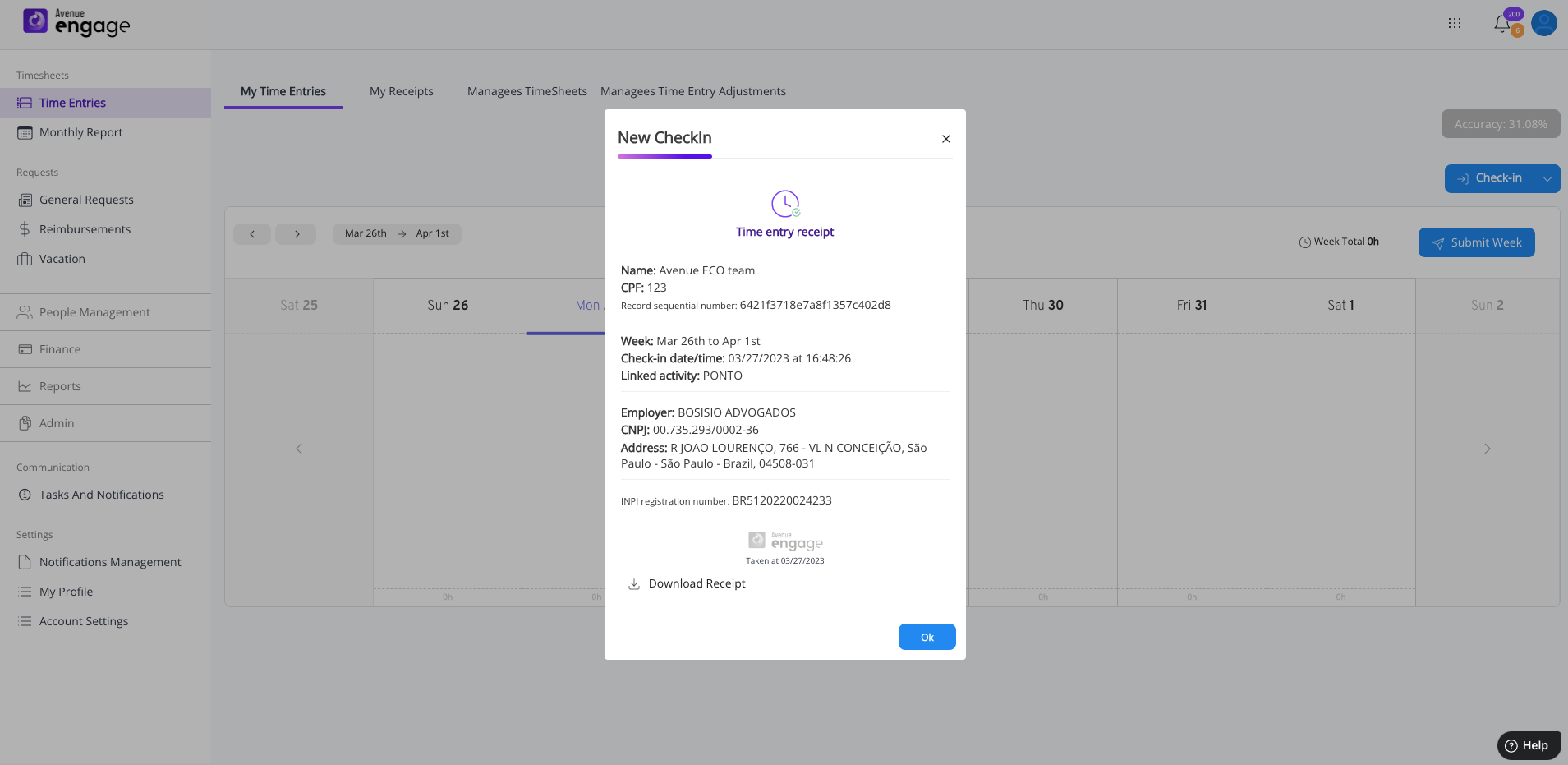
*To record the exit, simply follow the same process.
Was this article helpful?
That’s Great!
Thank you for your feedback
Sorry! We couldn't be helpful
Thank you for your feedback
Feedback sent
We appreciate your effort and will try to fix the article